
LabelFixer · Practical guide
Why shipping labels print too small and how to check the print size
A small printed label can result from an oversized source page, mismatched paper dimensions, or scaling in the browser or printer driver. Check those settings in order before changing the label content.
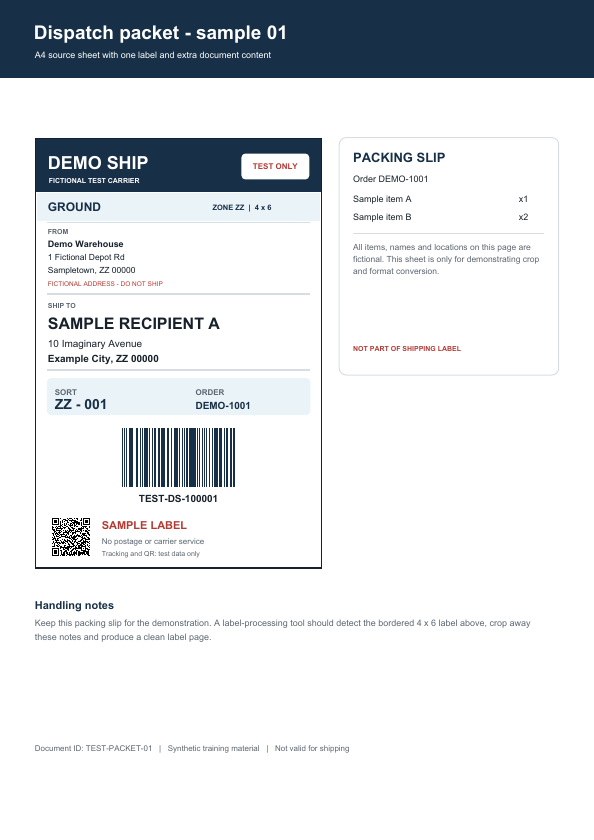
A real result using synthetic documents
Before: source PDF
After: LabelFixer export
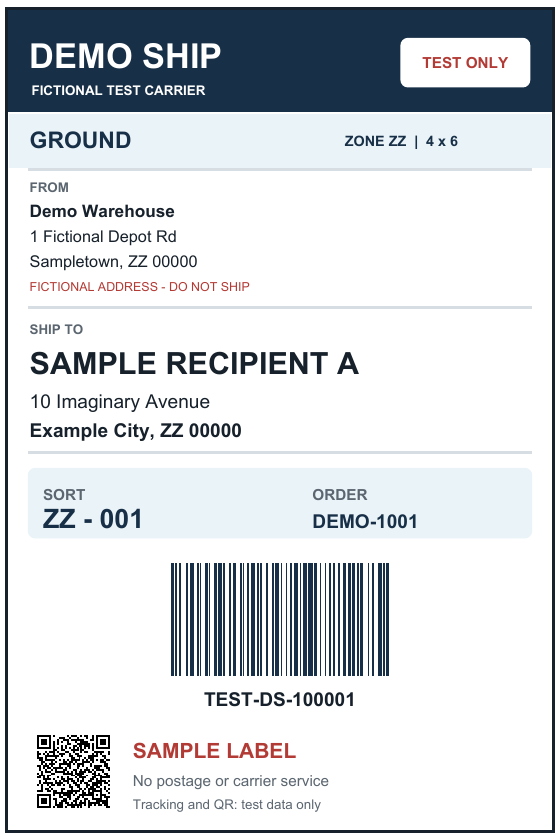
All recipients, addresses, orders and codes in these examples are fictional. They are test documents, not valid postage. The label text in the shared demo PDF is English. Cropping changes the visible and printed page; vector PDF data outside the crop may remain embedded. Use a dedicated PDF redaction tool if that data must be removed before sharing.
1. Check the PDF page, not just the visible label
If an A4 or Letter page contains a small label and extra content, fitting that whole page onto 4×6 paper shrinks everything. First crop the label and export a PDF at the actual label size. In LabelFixer, choose the output size in Advanced, prepare the page, and inspect the full preview.
2. Match the output and printer paper sizes
Select the same dimensions in LabelFixer, the print dialog, and the printer driver. 4×6 inches is 101.6×152.4 mm; 100×150 mm and A6 (105×148 mm) are different sizes. Use Custom size for a paper size that is not listed.
The printer must support the chosen media. LabelFixer cannot configure printer hardware or guarantee every driver’s paper handling.
3. Turn off unwanted scaling
Choose Actual Size / 100% when available. Turn off Fit to Page, shrink-to-fit, or similar automatic scaling. Check the system print dialog or printer preferences as well: a driver may apply its own scaling.
Select a matching orientation. Labels that appear sideways may need rotation in the application or an orientation change in print settings. Avoid changing both without checking the preview.
4. Print one test label
Before printing a whole batch, print one synthetic test label. Measure the output, check that the address and barcode remain complete, and confirm that the scanner or intended shipping workflow can read the result. Do not expose real customer information when asking for help.
If the PDF preview has the correct dimensions but the paper output is still small or clipped, check the printer’s media configuration and driver documentation. If the preview itself is wrong, review the crop and output size in LabelFixer.
Still need help?
Email support with your Chrome version, printer model, intended paper size, and a description or synthetic screenshot of the issue. Do not send real shipping addresses, tracking details, or license keys.
Try the workflow locally
Automatic tools are available during the introductory Pro trial and with Pro. Inspect the preview before printing. PDFs stay on your device; purchase and license verification use Lemon Squeezy.
Related guides
- How to crop A4 or Letter shipping-label PDFs to 4×6
- How to prepare multiple shipping-label PDFs as one print-ready batch
- How to separate a shipping label from its packing slip in a PDF
- How to split two or more shipping labels on one PDF page
- How to rotate a sideways shipping-label PDF for thermal printing