
LabelFixer · Practical guide
How to split two or more shipping labels on one PDF page
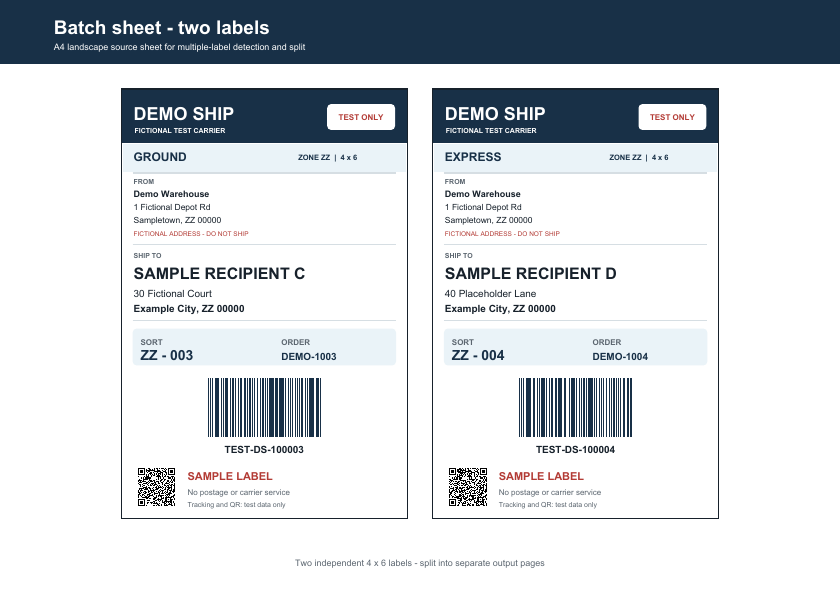
Some exports place two shipping labels beside each other or one above another. Sending that entire sheet to a 4×6 printer shrinks both labels. The intended result is one complete label per output page.
A real result using synthetic documents
Before: source PDF
After: LabelFixer export
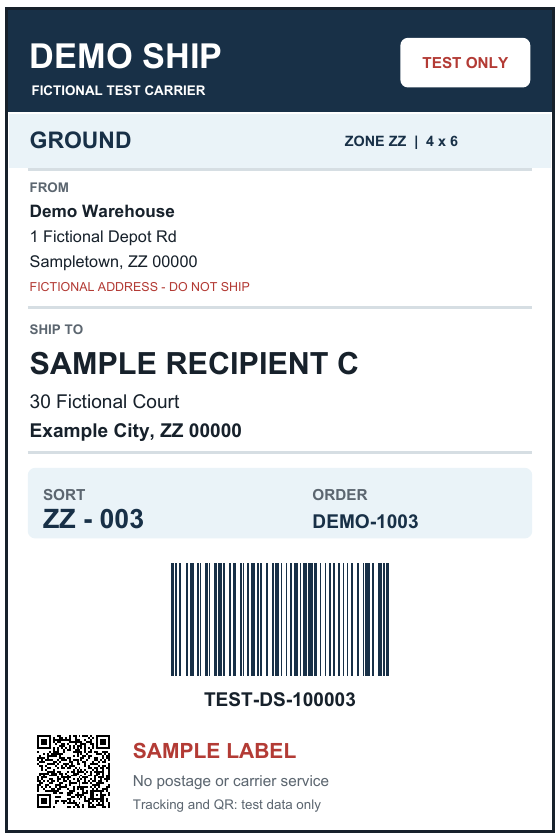
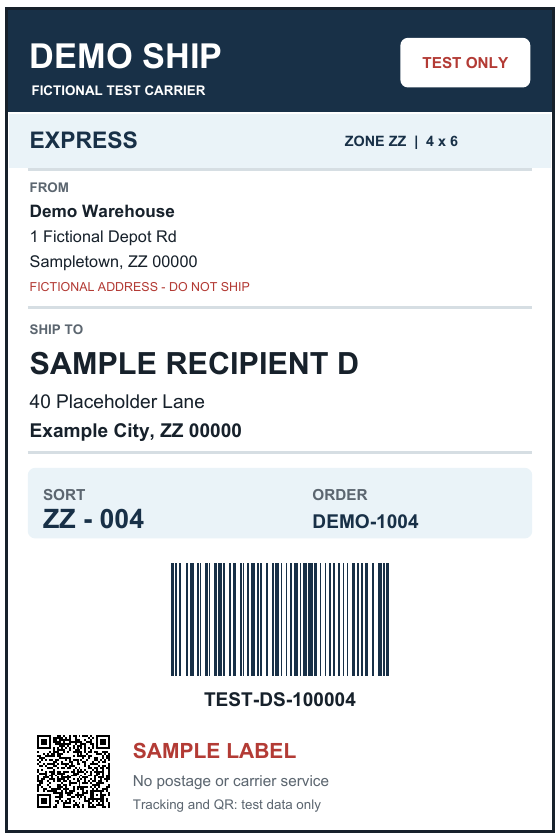
All recipients, addresses, orders and codes in these examples are fictional. They are test documents, not valid postage. The label text in the shared demo PDF is English. Cropping changes the visible and printed page; vector PDF data outside the crop may remain embedded. Use a dedicated PDF redaction tool if that data must be removed before sharing.
Enable splitting before processing
- Import the source PDF and select your label paper size in Advanced.
- In the automation settings, enable Split multiple labels on a page.
- Keep Barcode Safe Mode enabled, then click AUTO FIX ALL with Pro or during the introductory trial.
- Check the label count. Two confidently independent label regions should become two output cards, each with its own crop and orientation.
- Open both cards. They should refer to the same original filename and page, while showing different complete labels.
- Download the combined PDF and print at Actual Size / 100%.
What makes a safe split different from cutting the page in half
LabelFixer looks for independent label regions. Their placement and sizes may differ; a fixed middle cut can trim a barcode or separate parts of one label. Each detected region is checked independently for orientation and barcode-boundary risk.
Two barcodes do not necessarily mean two labels. Routing and tracking codes can belong to one label, and instructions or a packing slip can sit beside it. The cautious workflow avoids treating these elements as separate labels without enough evidence.
If there is still only one output page
First check that splitting is enabled and then examine the original page in the large preview. If the boundaries are ambiguous, the application can keep the page with a Review warning. Aggressive mode can accept additional label-shaped candidates, but it still keeps boundary safety checks and is not a reason to skip inspection.
Manual crop adjusts one output label at a time; it does not invent a second detected region. Keep the original PDF and prepare each required region separately if automatic splitting cannot safely identify all labels. Do not print a crop that silently leaves out the second parcel label.
Verify the final order
By default, output follows the source file order, original page order and split-region order. Drag the cards if you want another print order. Check the recipient or order reference on each label before exporting, especially when both came from the same original page.
Try the workflow locally
Automatic tools are available during the introductory Pro trial and with Pro. Inspect the preview before printing. PDFs stay on your device; purchase and license verification use Lemon Squeezy.
Related guides
- How to crop A4 or Letter shipping-label PDFs to 4×6
- How to prepare multiple shipping-label PDFs as one print-ready batch
- Why shipping labels print too small and how to check the print size
- How to separate a shipping label from its packing slip in a PDF
- How to rotate a sideways shipping-label PDF for thermal printing