
LabelFixer · Practical guide
How to prepare multiple shipping-label PDFs as one print-ready batch
A batch can contain single-page PDFs, multi-page documents, rotated labels, and different source page sizes. LabelFixer keeps the source filename and original page number for each resulting label.
A real result using synthetic documents
Before: source PDF
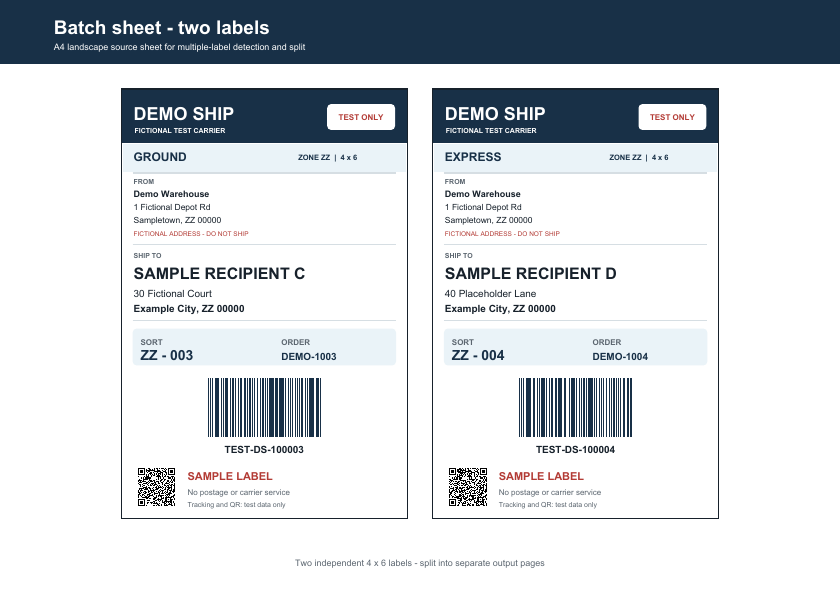
After: LabelFixer export
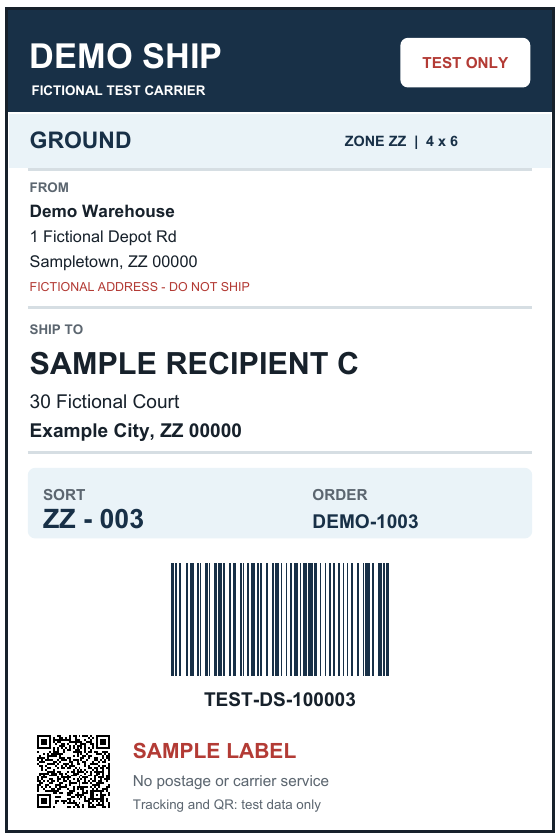
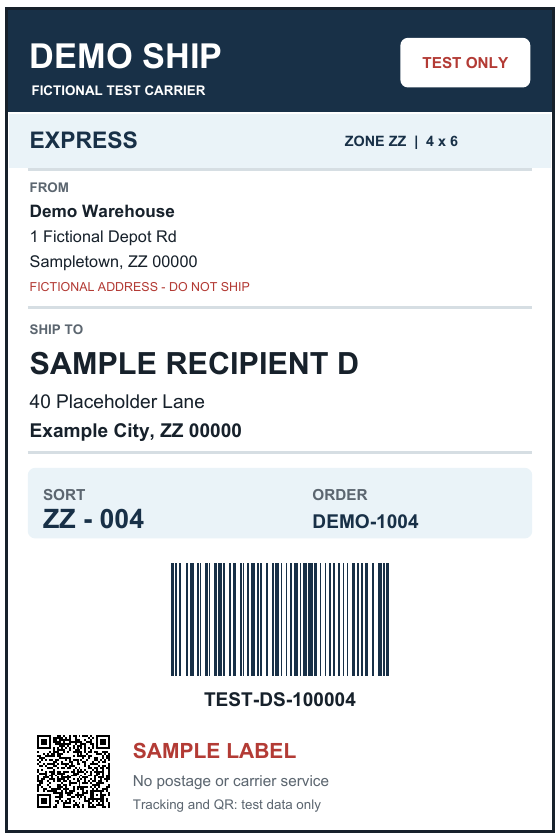
All recipients, addresses, orders and codes in these examples are fictional. They are test documents, not valid postage. The label text in the shared demo PDF is English. Cropping changes the visible and printed page; vector PDF data outside the crop may remain embedded. Use a dedicated PDF redaction tool if that data must be removed before sharing.
To try several source PDFs, download the three files below and add them together. Their three source pages contain four labels: one normal, one sideways and two on one sheet.
Add the source documents
Select several PDFs in the file picker, or drop them together into LabelFixer. Use Add more PDFs to add documents to an existing batch. Expand the compact source list if you need to inspect page counts or remove a file.
Only PDF files are supported. An unsupported or damaged file can be reported separately while the valid documents remain available. Password-protected PDFs may need an unlocked copy prepared with an appropriate PDF application before import.
Process the batch once
- In Advanced, choose the output paper size and the automation options you need.
- Use AUTO FIX ALL during the introductory Pro trial or with Pro.
- Wait for the progress indicator. Each source page uses the same detection, crop, rotation, blank-page removal, and barcode-safety workflow.
- Check the result summary and open any Review items. Do not assume every source document has the same layout.
Automatic removal applies to confidently empty pages. Uncertain or useful-looking content should be reviewed before removal. Multiple labels are split only when the regions are sufficiently clear.
Review and arrange the output
Click a preview card to inspect the full label, its source, and any warnings. Adjust uncertain crops manually, or use Keep as is / Remove when appropriate. Drag cards to change the order; sorting is also available in Pro.
By default, the batch follows the order in which files were added, then their original pages and the labels created by splitting. The output uses the current order shown in the preview.
Export or print one document
DOWNLOAD PDF creates one combined PDF. PRINT opens the print workflow for the batch. Choose the matching paper size and Actual Size / 100%, and inspect a test print before a large run.
Batch automation is included in Pro and the introductory Pro trial. The Free PDF allowance is counted per distinct processed PDF, not per uploaded batch. PDFs are processed locally; Pro checkout and license checks use Lemon Squeezy separately.
Try the workflow locally
Automatic tools are available during the introductory Pro trial and with Pro. Inspect the preview before printing. PDFs stay on your device; purchase and license verification use Lemon Squeezy.
Related guides
- How to crop A4 or Letter shipping-label PDFs to 4×6
- Why shipping labels print too small and how to check the print size
- How to separate a shipping label from its packing slip in a PDF
- How to split two or more shipping labels on one PDF page
- How to rotate a sideways shipping-label PDF for thermal printing