
LabelFixer · Practical guide
How to rotate a sideways shipping-label PDF for thermal printing
A label can look sideways because its content was exported at an angle or because the whole PDF page is rotated. The practical goal is an upright label on the correct paper size, without rotating it again in the printer driver.
A real result using synthetic documents
Before: source PDF
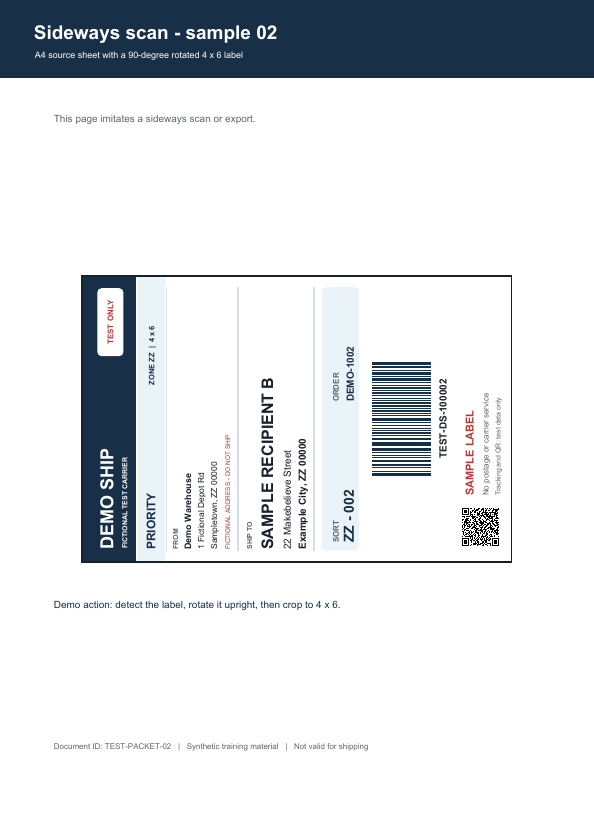
After: LabelFixer export
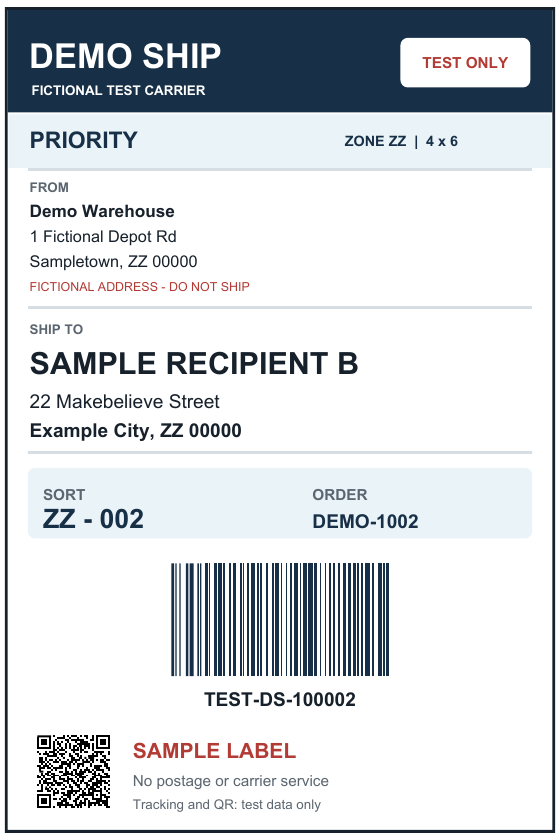
All recipients, addresses, orders and codes in these examples are fictional. They are test documents, not valid postage. The label text in the shared demo PDF is English. Cropping changes the visible and printed page; vector PDF data outside the crop may remain embedded. Use a dedicated PDF redaction tool if that data must be removed before sharing.
Check content orientation in the preview
Open the PDF in LabelFixer and compare the visible text with the paper shape. A landscape source sheet can still contain a portrait label; changing the page size alone will not make that text upright.
For a scanned label, make sure it is sharp enough to read before processing. Rotating pixels preserves their geometry but cannot add detail that was not present in the scan.
Use automatic orientation or the manual rotation control
- Choose the actual output size in Advanced.
- With Pro or the introductory trial, click AUTO FIX ALL. Each detected label, including split labels, gets its own orientation decision.
- Open its large preview. Check that the address and service information can be read upright.
- If the result is sideways or upside down, use the manual rotation control to turn the label by 90, 180 or 270 degrees. Manual rotation is also available in Free.
- Inspect the crop again after rotating, including every barcode/QR area and its margins.
- Download the prepared PDF, or print it using the same paper size and Actual Size / 100%.
When automatic rotation asks for review
Unusual layouts, little extractable text or unclear raster scans can make orientation ambiguous. Inspect that label instead of assuming the longest side determines the right direction. A barcode itself can be horizontal or vertical in a valid label.
Automatic orientation is a preparation aid. It does not confirm that postage is valid, that the recipient address is correct or that a printed barcode will scan.
Avoid a second rotation in the print dialog
If the prepared PDF is upright but the printer preview turns it sideways, check the browser orientation and printer-driver media settings. Change one setting at a time and print one test label. If the source is vector PDF content, normal crop/rotation does not need to flatten it into an image.
Try the workflow locally
Automatic tools are available during the introductory Pro trial and with Pro. Inspect the preview before printing. PDFs stay on your device; purchase and license verification use Lemon Squeezy.
Related guides
- How to crop A4 or Letter shipping-label PDFs to 4×6
- How to prepare multiple shipping-label PDFs as one print-ready batch
- Why shipping labels print too small and how to check the print size
- How to separate a shipping label from its packing slip in a PDF
- How to split two or more shipping labels on one PDF page