
LabelFixer · Practical guide
How to separate a shipping label from its packing slip in a PDF
The shipping label and the packing slip serve different purposes. The label goes on the parcel; the slip lists the order contents. When they share an A4 or Letter page, printing both on a small thermal sheet makes the label unnecessarily small.
A real result using synthetic documents
Before: source PDF
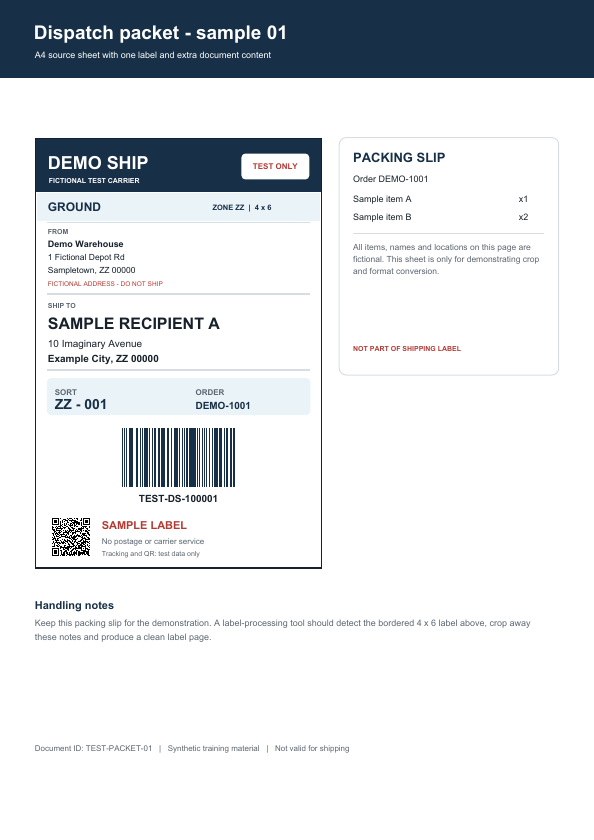
After: LabelFixer export
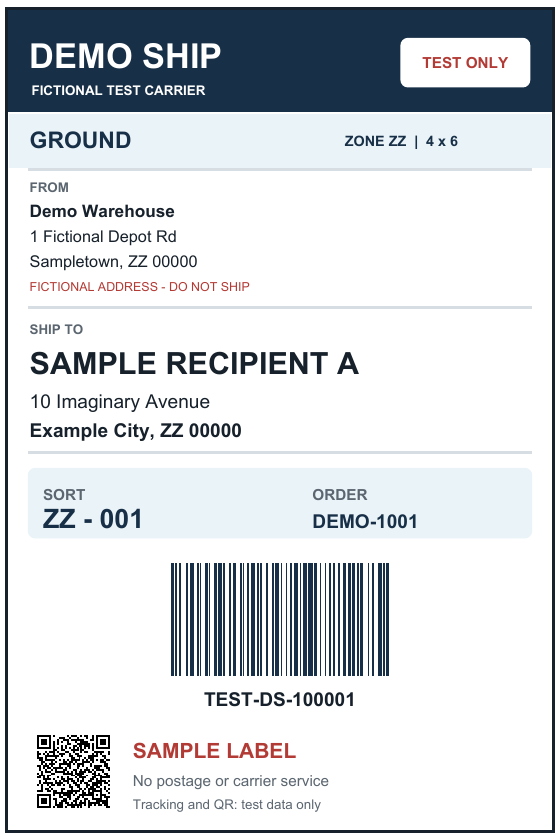
All recipients, addresses, orders and codes in these examples are fictional. They are test documents, not valid postage. The label text in the shared demo PDF is English. Cropping changes the visible and printed page; vector PDF data outside the crop may remain embedded. Use a dedicated PDF redaction tool if that data must be removed before sharing.
Identify what belongs to the label
Find the complete carrier label: recipient and sender details, service information, tracking/barcode areas, routing marks and its outer boundary. A packing slip normally lists products and quantities. Keep the source PDF if you also need that slip for packing; a label-only export will exclude it.
Do not decide solely by the largest barcode. An invoice can also contain a barcode, and a shipping label may contain several codes. The full document layout matters.
Prepare a label-only page
- Import the PDF and choose the output size in Advanced.
- Leave the cautious Auto Fix mode and Barcode Safe Mode enabled when using Pro or the introductory trial.
- Click AUTO FIX ALL. A confidently separate label can be cropped while the adjacent slip and instructions stay outside the output.
- Open the large preview. Compare the edges with the original PDF: the address, service lines and all barcode/QR areas should remain complete.
- If the crop is uncertain, open its Review item and choose Crop manually. Adjust the rectangle to enclose the whole label and its margins, then inspect the result again.
- Download the label PDF. Print it at the matching paper size and Actual Size / 100%.
What to do when the slip overlaps or touches the label
A crowded page, missing border, or low-quality scan may not give enough evidence for a safe automatic crop. A Review warning is a request to inspect that particular source page. Keep it as is if you cannot determine the correct boundary.
Barcode safety checks crop boundaries; they are not a guarantee that a carrier will accept a label or that a barcode will scan. Test the printed output using your normal shipping workflow. Thermal enhancement is intended for raster labels and cannot recreate lost detail.
Keep the packing document separate
LabelFixer prepares the print labels. Preserve the original document for invoices, order notes and packing information that you still need. Its optional Pick List is available only when reliable SKU/order information can be extracted; it is not a replacement for every marketplace packing slip.
Try the workflow locally
Automatic tools are available during the introductory Pro trial and with Pro. Inspect the preview before printing. PDFs stay on your device; purchase and license verification use Lemon Squeezy.
Related guides
- How to crop A4 or Letter shipping-label PDFs to 4×6
- How to prepare multiple shipping-label PDFs as one print-ready batch
- Why shipping labels print too small and how to check the print size
- How to split two or more shipping labels on one PDF page
- How to rotate a sideways shipping-label PDF for thermal printing